A professional email signature should make four things clear: who you are, what you do, how someone can reach you, and what they should do next.
The challenge is knowing what to include without making the signature too cluttered and difficult to read.
In this guide, we’ll look at what an email signature is, what to include in it, how to create one, and how to use it alongside your digital business card.
Key Takeaways:
- Keep your email signature clear, concise, and easy to scan.
- Include only the details recipients need right away.
- Use one clear CTA instead of several competing actions.
- Let your digital business card hold the deeper professional profile.
- Keep your signature and digital business card consistent.
- What is an email signature?
- What should a professional email signature include?
- What should you leave out of an email signature?
- What should a professional email signature look like?
- How to create an email signature?
- How to use email signatures and digital business cards together
- Final thoughts
- Frequently asked questions
What is an email signature?

An email signature is the block of professional information that appears at the end of an email, usually after your sign-off.
At its simplest, it tells the recipient who you are and gives them the information they may need to continue the conversation. That could include your name, job title, company, contact details, and a relevant link or next step.
A good email signature does not try to tell the recipient everything about you. It gives them enough context to understand who they are speaking with and makes the next interaction easier.
That distinction matters because once too much information is added, the signature can start competing with the email itself.
What should a professional email signature include?
There is no single email signature format that works for every profession. Still, a few elements are useful in most situations.
Your name
Your name should be one of the easiest things to notice.
Use the name you normally use professionally and give it enough visual emphasis to separate it from the supporting information around it.
That does not mean making it oversized or heavily styled. The goal is hierarchy, not decoration.
Your role and company
Your title tells the recipient why you are relevant to the conversation.
Compare:
Joshua Green
with:
Joshua Green
Sales Representative | Acme
The second version immediately provides useful context.
When choosing the title to display, think about the person reading it. Internal job terminology may make perfect sense inside your organization but mean very little to customers, prospects, or partners.
Use a title that an external contact can understand quickly.
If you work independently, you can instead include your consultancy, agency, practice, or professional brand where appropriate.
The most useful contact method
You do not need to list every possible way someone could contact you.
Choose the method that makes the most sense for your role and the conversations you typically have.
For some professionals, that will be a phone number. For others, a booking link, website, LinkedIn profile, or digital business card may be more useful.
The aim is to make the next interaction easier, not to present the recipient with a menu of options.
One professional destination
Now ask another question:
Where should someone go if they want to know more about me?
That might be your website, portfolio, LinkedIn profile, booking page, or digital business card.
If you regularly need to share several different kinds of professional information, a digital business card can bring them together in one place without making the signature itself longer.
The email gives the recipient what they need now. The fuller profile is there when they want more.
One clear next step
Not every email signature needs a call to action.
But when there is an obvious next step, making it clear can help.
A salesperson might use Book a meeting.
A freelancer might use View my portfolio.
A recruiter might use View open roles.
A consultant might use Schedule a consultation.
The point is not to add a button because there is space for one. It is to make the most useful next action obvious.
What should you leave out of an email signature?
A strong signature is shaped just as much by what you remove as by what you include.
A few useful details can quickly turn into several phone numbers, social links, booking buttons, certifications, and banners. Add legal text and promotional messages, and the signature starts doing far too much.
What should be a simple introduction begins to look more like a contact directory, portfolio, company brochure, and advertisement rolled into one.
Multiple calls to action create the same problem.
For example:
Call me | Book a meeting | Visit website | Read blog | View portfolio | Follow on LinkedIn | Watch demo
None of those links is necessarily wrong on its own. The problem is that the recipient now has seven possible actions and no clear priority.
Choose the one that matters most.
That does not mean professional photos, company logos, LinkedIn links, addresses, credentials, or legal text are always unnecessary.
A professional photo can help with recognition in relationship-driven roles. A company logo can reinforce organizational identity. Credentials such as MD, CPA, or PhD can matter when professional authority depends on them. Some companies or industries may also require specific legal text.
The rule is simple:
Add something because the recipient needs it, not simply because the signature supports it.
What should a professional email signature look like?

Good email signature design is less about decoration and more about hierarchy.
Someone should be able to glance at the signature and understand what matters without studying it.
The email itself should remain the focus. The signature supports the message rather than competing with it.
Once the signature looks right, test it in a real email rather than relying only on the editor or preview.
Send yourself a message and open it on desktop and mobile. Test every link. If possible, check how it appears in both light and dark interfaces.
Email clients can handle images, spacing, colors, and links differently, so check a signature looks polished in the editor where recipients will actually see it.
How to create an email signature?
There are two basic ways to create a professional email signature.
You can build one manually using the signature editor in your email platform. This works well when your needs are simple, though the available design and formatting options can be limited. HTML gives you more control, but it can also become complicated if you are not comfortable working with it.
The other option is to use a dedicated email signature maker such as DigitalBusinessCard.Pro.
DigitalBusinessCard.Pro lets you create your professional email signature alongside your digital business card, so your contact details, branding, and professional profile can work together.
It can also create the email signature using information from your digital business card, which means you do not need to rebuild the same professional details from scratch.
Here is how the process works.
Step 1: Create your digital business card
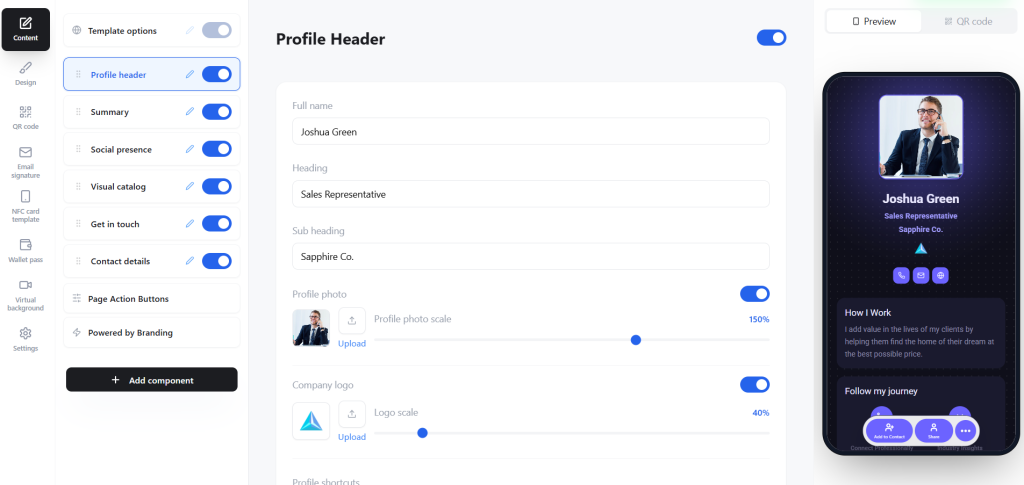
Log in to your DigitalBusinessCard.Pro account and create a digital business card.
Add the information contacts may want to access, such as your name, role, company, contact information, website, booking links, and relevant professional profiles.
Think of the digital business card as the broader destination. It can contain information that may be useful to some contacts without forcing all of it into every email you send.
Step 2: Choose your email signature
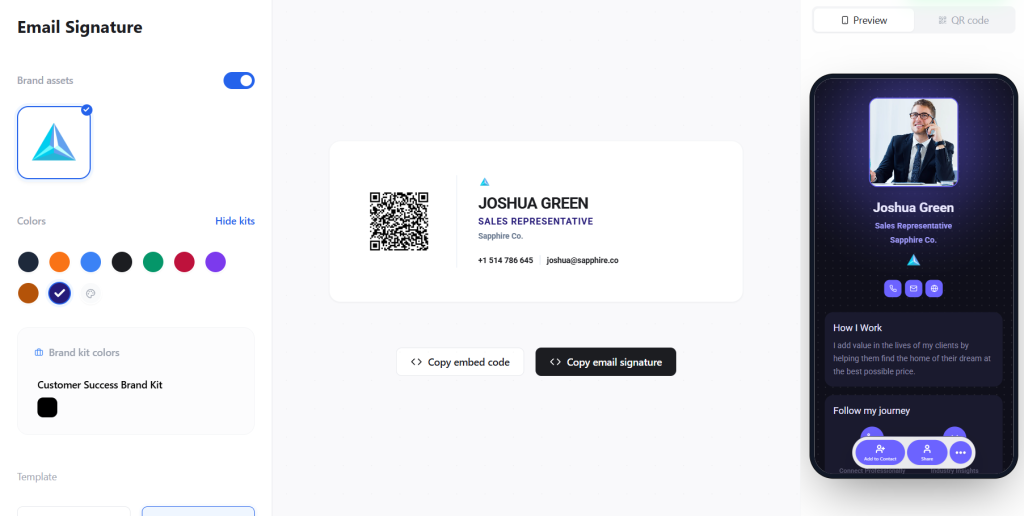
Once your digital business card is ready, come to the email signature section.
From your digital business card, open the email signature option and select a layout that fits your role and branding.
Because your professional information already exists on the card, it can be used while creating the signature instead of asking you to rebuild the same profile separately.
[Suggested visual: digital business card → email signature templates]
Step 3: Customize the colors or choose brand kit colors
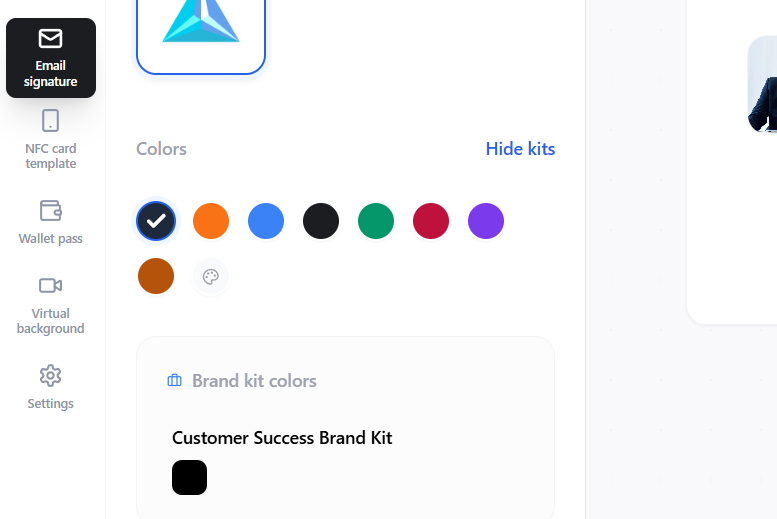
DigitalBusinessCard.Pro fetches the email signature colors from the digital business card you just created. However, you can also choose custom colors or match it with your brand. There’s an option to upload your brand kit for quick access to the brand’s colors.
Step 4: Add it to your email platform
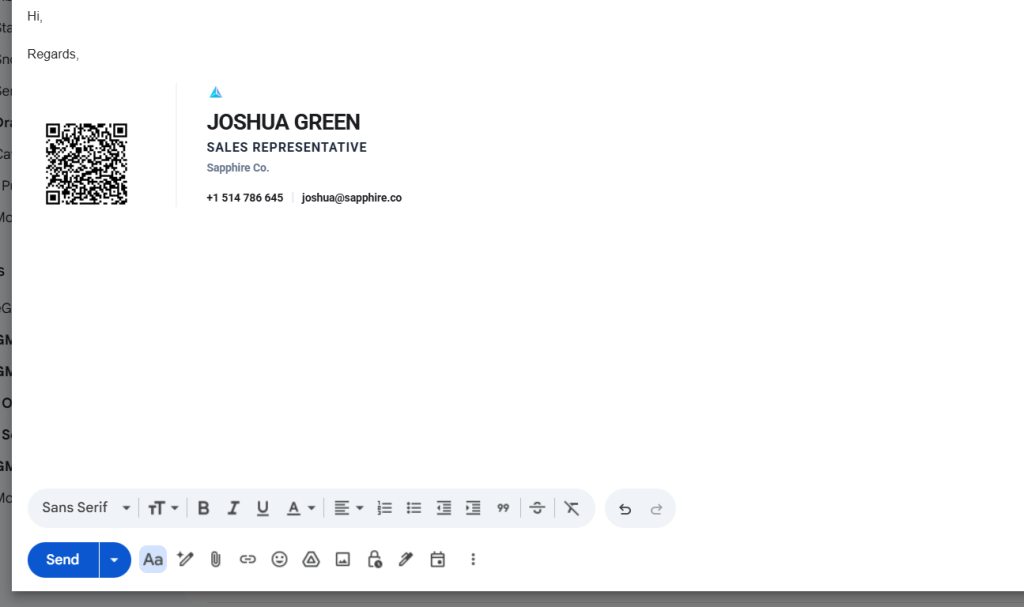
Once your signature is ready, click “Copy email signature” and paste it in your email Once your signature is ready, click “Copy email signature” and paste it into your email platform’s signature settings or directly into the body of an email.
If needed, the platform also provides the signature’s embed code.
If you’re satisfied with the signature, save your digital business card and start using the signature in your emails.
How to use email signatures and digital business cards together
An email signature and a digital business card work best when they complement each other rather than repeat the same information.
Keep the signature focused on what the recipient needs immediately: your name, role, company, primary contact method, and one clear next step. Use the digital business card for the broader profile, including social links, booking options, company resources, portfolio work, or additional contact details.
A simple way to think about it is:
Email → email signature → digital business card
The email starts the conversation, the signature provides quick context, and the digital business card gives recipients somewhere to learn more or save your details.
- Connect the two clearly: Link your digital business card from the signature. You can use a CTA button or a QR code to share it.
- Avoid unnecessary duplication: Keep essential information in the signature and let the digital business card handle the deeper profile.
- Keep both consistent: Use the same name, role, branding, and contact information across both so the transition from your email to your digital profile feels seamless.
Final thoughts
A professional email signature may be small, but it plays an important role in every message you send. It reinforces who you are, gives recipients the right contact information, and can guide them toward the next useful action without distracting from the email itself.
The best signatures are clear, focused, and easy to scan. They include what the recipient needs now and leave out what can wait.
That is also where a digital business card can add value. By keeping your signature concise and linking it to a fuller professional profile, you can share more without cluttering every email. Used together, your email signature and digital business card create a smoother way for people to recognize you, reach you, and learn more.
Frequently asked questions
What should a professional email signature include?
For most professionals, include your full name, job title, company, and the contact method that is most useful for the recipient.
You can also add one professional destination or call to action when there is a clear next step you want the recipient to take.
What is the difference between a signature and a sign-off?
An email sign-off is the closing phrase you use at the end of the message, such as Thanks, Best regards, or Kind regards.
Your email signature appears after the sign-off and contains your professional information.
Should I include a photo or company logo?
Either can be useful when it supports recognition or reinforces your brand identity.
Keep it only if the signature remains easy to scan and continues to display well across email clients and devices.
Should I include my email address in my signature?
Not necessarily.
In most cases, the recipient can already see the email address you used to send the message.
It can still be useful when an email is forwarded, printed, saved, or shared outside the original conversation.
Should I include a booking link?
Include one when scheduling a meeting is a common and useful next step for the people you email.
If meetings are not central to your role, choose a destination that better matches what the recipient is likely to need.
Should I link my digital business card from my signature?
It can be particularly useful when you have more professional information than comfortably belongs in the signature itself.
Your signature gives the recipient immediate context, while the digital business card provides the fuller profile.
You can link to it directly or use a QR code in the signature to give recipients another way to open it.
You may also like
5 Best Event Lead Capture Tools in 2026
Event lead capture gets messy fast. Let’s look at the five best event lead capture tools, and how to choose the right one.
How Much Does a Digital Business Card Cost? (2026 Pricing Guide)
This guide helps you understand how much a digital business card costs and how much to invest based on your requirements.
How to Integrate Digital Business Card with Your HubSpot
Learn how to connect HubSpot with Digital Business Card PRO, map form fields, and automatically send digital business card form submissions to HubSpot.
Brand Consistency Across Teams: Standardize Customer-Facing Touchpoints and Measure Results
Brand consistency cannot scale through guidelines alone. Here’s how to build a system that ensures brand consistency across teams.